
How to approve a site flagged as risky
Sites are NOT flagged because of their content, subject matter, or ownership.
Quantum Fiber 360 WiFi® security includes a malicious website filter that identifies and blocks access to potentially dangerous sites. Sometimes this can happen even with sites you know are safe, for technical reasons. Keep reading to learn how to add a site to your approved sites list.
Approving a site in the Quantum Fiber app
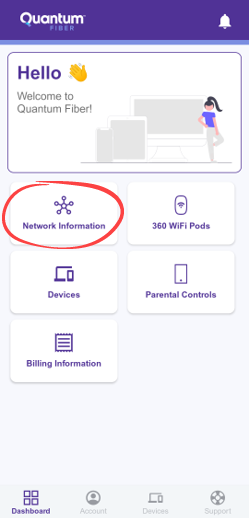
1. Sign in to the app and tap on Network Information.
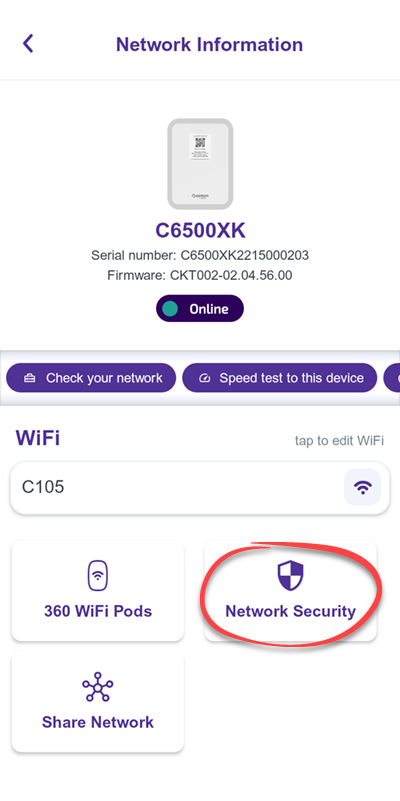
2. On the Network Information screen, scroll down to the Network Security section and tap on Security Threats.
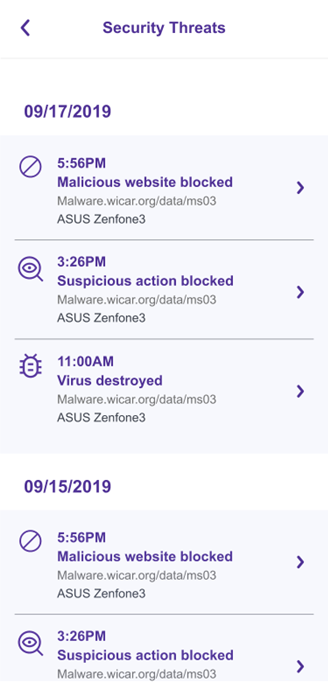
3. You will see a list of all threats identified by the security program, as shown in the example below. Click on the website you want to add to your approved sites list.
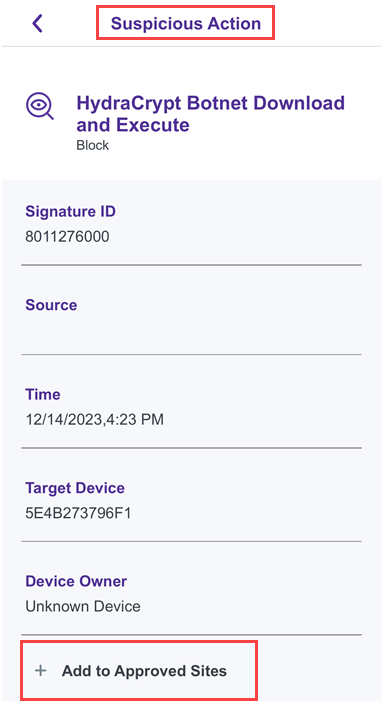
4. The next screen will show details about the blocked site, and a button to Add to approved sites.
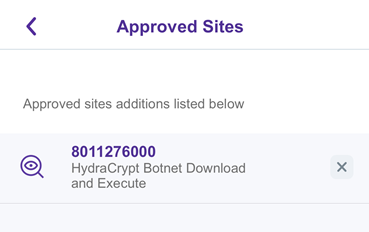
5. After you click the button to add the site to your approved sites list, you'll see your Approved Sites screen.
Why do sites get flagged as malicious or risky?
The Quantum Fiber 360 WiFi website filter provides protection against potentially risky websites that could infect a device with adware, ransomware, or other malware. The filter is managed by a Global Threat database in the cloud and is continually updated with the latest threats.
Sometimes otherwise safe websites may be identified as risky for technical reasons, as in these examples:
- New websites that haven't been established yet
- Sites that don't have sufficient SSL encryption (security coding)
A website that has been identified as risky can later gain “trusted” status.
The malicious website filter is not content-specific. Websites are not flagged for the ideas or content on the page, or because of who owns it.
Need more help? Chat with us here, in the app, or from the account portal. If you prefer to call, that's an option.
Related topics
-
Welcome to 360 WiFi -
360 WiFi FAQs -
Troubleshoot 360 WiFi -
Change 360 WiFi network name & password -
Install a pod
Get the app



Manage your Quantum Fiber account
Was this information helpful?
© 2026 AT&T Intellectual Property. AT&T and globe logo are registered trademarks of AT&T Intellectual Property. All other marks are the property of their respective owners.


© 2026 AT&T Intellectual Property. AT&T and globe logo are registered trademarks of AT&T Intellectual Property. All other marks are the property of their respective owners.